
As you’ve seen on my Tracking Sales page, I track my monthly sales results. Sometimes, though, I want to take a closer look at the data. When I run a sale or a promotion, for example, I like to look at daily results to better identify what’s working and where it’s working best.
In my world, this calls for another spreadsheet. 🙂
1. Create a new spreadsheet and save it under a name that makes sense to you. Book1SaleYear, for example.
2. Widen Column A, then list the applicable dates in row 1, starting in B1. If the sale (or the advertising) begins partway through the month, I often make the first column Month-To-Date. That gives me a baseline of what happened before the sale began.
Leave a blank line, then put your featured title in A3. List the portals you want to track below, and create a total line for each day. How long should you track results of a promotion? I track for at least a week.
Create a column for totals at the right, as well.
Your spreadsheet will look like this:

This chart shows a book in wide distribution. If your book is in KU, you’ll want a line for Page Reads instead of including the other portals. There may also be other places you can track results – for example, I have a series starter with a bonus epilogue for readers who sign up for my newsletter. I track those sign-ups when I have a promotion as well as unit sales.
I have a routine of updating the spreadsheet first thing in the morning, when I’m having my coffee for the day before. I log into each portal, go to the reports, and search for the individual titles. You’ll find the free units under Units or Orders and the sold units under Sales. You want to isolate results by date for the best tracking. Apple reporting is sometimes delayed a few days. GooglePlay reporting is always delayed a few days. I fill in results as I can.
2. Build your formulae for totaling the sales. The daily totals across the bottom are the sum of unit sales by portal.
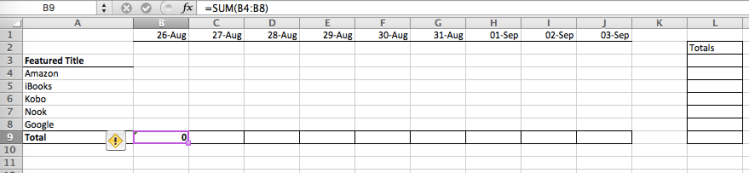
In this case, the sale is beginning on August 27, so the total for the Amazon row in column L is
C4 + D4 + E4 + F4 + G4 + H4 + I4 +J4
You’ll want to leave out the extra spaces.

Once you’ve done the first one, you can copy and paste the formula down the column. This is a magic spreadsheet thing – when you past the formula from L4 into L5, it changes all the cells being summed to their row 5 equivalents.
3. At this point, I fill in the promotions. That’s why line 2 was left blank. Typically, I use this spreadsheet when I have a BookBub Featured Deal. So, in this case, August 26 would be MTD (month to date). On the 27th, I’d send out my newsletter (NL) and share the news of the sale on social media. I like to get units moving before the big ad and sometimes start more than a day or two in advance. The 28th is the day of the BookBub ad (BB) and then later in the week, I have other promotions book to extend the halo of the sale. I try to isolate the BB ad from other promotions, but when other authors are good enough to share your sale in their newsletter, that doesn’t always work out. Having one event per day helps me to see better what works and what doesn’t.
4. Copy and paste the entire block that you’ve created for each of your “halo” book or books. Halo books are where you make your money, especially when you promote a title for free. So, if book #1 in the series is being offered free for the promotion, it’s the featured title and the first block on the spreadsheet will track downloads. The revenue, though, will come from sales of the other books in the series. Copy the spreadsheet once for every potential title in the halo.
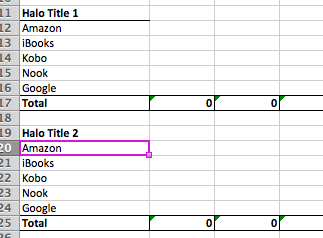
If you’ve never done a sale like this before, you might want to take a snapshot of your month-to-date reports at all of the portals so you can compare before the promotion and afterward. Which books are identified as halo titles by readers might be different from your expectation. I find, for example, that with a free promotion, some readers will seek out my other free titles, despite the fact that they’re in different series or even different sub-genres.
5. Finally, you need to tally up results. Create a block at the bottom of your spreadsheet to total the units moved during the promotion for each title you’ve listed.
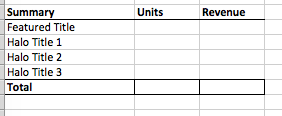
Add the formulae. The total units for the each title is equal to the total units sold of that title. My spreadsheet is a bit too big for a screenshot but the Units of the Featured Title is equal to this cell – it’s the one at the far right of the block totaling results for that title:
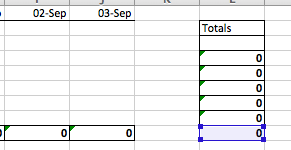
Add the formulae for your halo books and create a sum in the Total line.
6. Add formulae for the revenue. If your featured title is free, of course, there’s no revenue from it. If it’s 99 cents, the revenue will equal the units sold times .35 – because you get a 35% royalty at that price point. If the halo book is $4.99, then the revenue will equal the units sold times 4.99 times .7, because you (usually) get a 70% royalty on sales at that price point. If your sales skew to portals or territories that pay less than 70%, you can adjust that percentage to be a more accurate reflection of results.
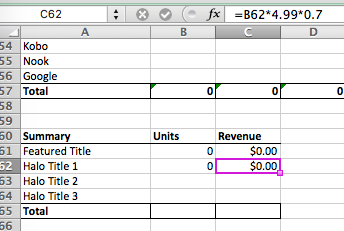
Create a formula in the Total cell to add your results together.
You’ll also want to select that column and format the cells to “currency”. That will give you the decimal point and the dollar sign.
7. Sum up your promotion. Create another little box at the bottom of the spreadsheet that looks like this:
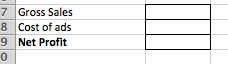
Gross sales is equal to the total revenue in the summary spreadsheet above.
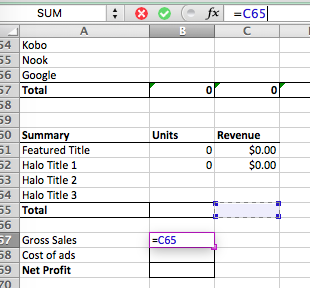
You can see that I haven’t completed my formulae in the summary, but skipped ahead. (My bad.)
Total your advertising costs in the Cost of ads cell. You might want to do another summary spreadsheet if that’s more complicated.
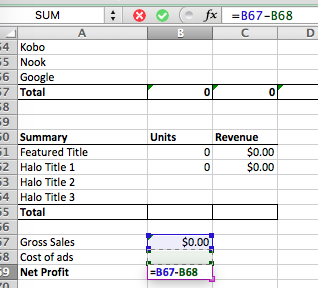
Your net profit is equal to Gross Sales minus the Cost of ads. As you fill in your unit sales information each day, this spreadsheet will populate and update, so you can quickly see when you reach the breakeven point.
If you save the spreadsheet like this, you can duplicate it to track a specific promotion pretty easily. You could also save it as a template. Be sure to rename it when you save the version with the new sales data.


 Deborah Cooke: Author